How To Set Up Email Forwarding in Plesk
This article explains how to set up Email Forwarding in Plesk. It outlines the purpose of email forwarding and provides step-by-step instructions to configure it for a mail account. By following this guide, you will understand how to direct incoming emails from one address to one or more recipients and how to manage forwarding settings within the Plesk interface.
Why Use Email Forwarding
This is useful when you have multiple email addresses and you want to check and manage them all from one Mail Account. Email Forwarding is also convenient if you need to forward your email messages to another person while you are away or on vacation, or simply because you have a designated person tasked with managing your emails.
If you've already created a Mail Account in Plesk, you can easily set up an Email Forward with the steps provided below.
Forward your Mail to another email address, or to several addresses, by following these easy steps:
NOTE: To disable or remove an Email Forwarding, simply come back to this step and deselect this option.
- Access your Hosting Manager in Plesk
- Click Mail from the left-side menu.
- Under the Email Addresses tab, click on the Email Address you would like to forward.
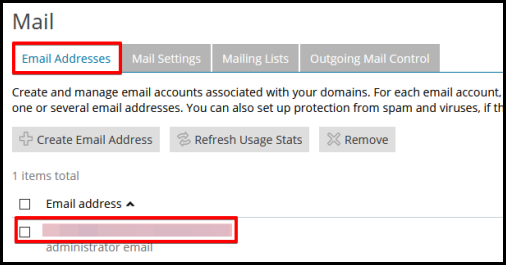
- Click on the Forwarding tab from the top menu.
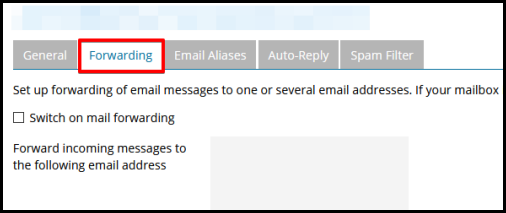
- Select Switch on mail forwarding.
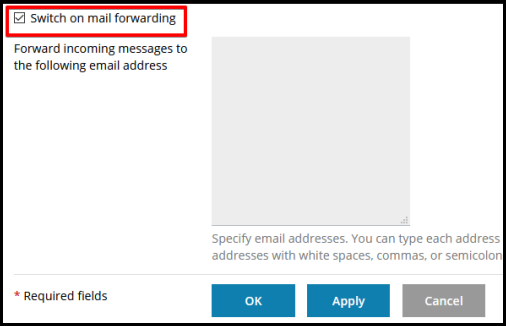
- In the box provided, specify the receiving email address where all the messages will be routed to. You can enter multiple email addresses by typing each address on a new line, or separating each address with white spaces, commas, or semicolons.
- Click the OK button.
NOTE: With Email Forwarding, emails will still be received by the original recipient and copies will be forwarded to the specified email address. If you would like to forward all emails and no longer receive emails in the main email, you can go back to Mail to select the Email address, then deselect Mailbox and click OK to save.